
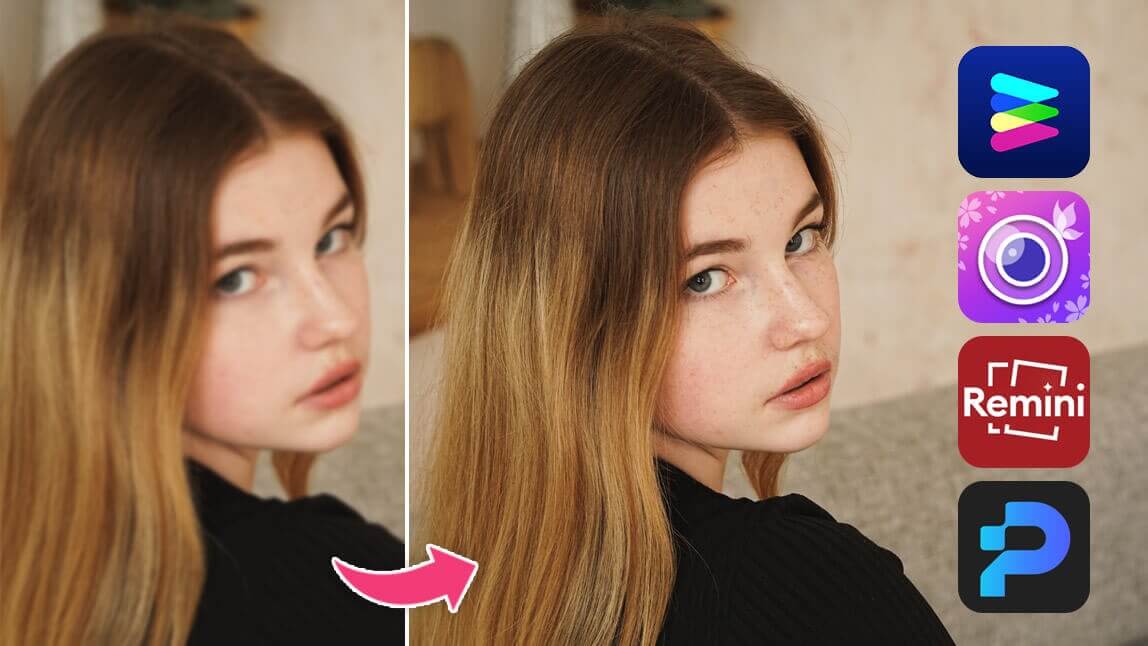
How Do Photo Enhancer Apps Work? Are There Free Options? Tips for Using Them Effectively
How Photo Enhancer Apps Work
Photo enhancer apps rely on artificial intelligence (AI) and machine learning to analyze and improve images. Here’s a simple explanation of what happens behind the scenes:
- Image Analysis:
The app first scans the photo to identify areas that need improvement. It looks for things like blurriness, poor lighting, or grainy textures. The AI detects patterns, edges, and details to understand the structure of the image.
- Noise Reduction and Sharpening:
If your photo is grainy or noisy (common in low-light shots), the app reduces the noise while keeping the important details intact. It also sharpens the image to make it look clearer. - Color Correction and Vibrancy:
The app adjusts the brightness, contrast, and saturation to make the colors look more vibrant and natural. This step ensures your photo doesn’t look overly edited or artificial. - Super-Resolution and Upscaling:
Some apps can increase the resolution of your photo by adding new pixels. This process, called super-resolution, uses AI to predict what the missing details should look like based on the existing image. It’s great for making small or low-quality photos larger without losing clarity. - Detail Restoration:
For old or damaged photos, AI can restore lost details like facial features, textures, or backgrounds. It does this by analyzing the remaining parts of the image and filling in the gaps. - Automation and Customization:
Most apps offer one-click enhancements for quick fixes, but they also let you tweak settings manually if you want more control over the final result.
Are There Free Photo Enhancer Apps?
Absolutely! While many photo enhancer apps have premium features that require payment, there are plenty of free options that work really well. Here are some of the best free apps in 2025:
Remini:
Remini is famous for restoring old and blurry photos. The free version lets you enhance images, but it does include ads and some limitations.
Pixelcut:
This web-based tool is perfect for quick edits. It offers free AI-powered features like background removal and image upscaling.
Clipdrop:
Clipdrop is a versatile web service with free tools for object removal, image upscaling, and background enhancement. Its “Uncrop” feature is especially handy for expanding images beyond their original size.
Aitubo:
Aitubo is a free online tool that enhances images up to 4K resolution without adding watermarks. It’s easy to use and supports various file formats.
Fotor:
Fotor’s free version includes AI tools for unblurring, retouching, and upscaling images. It’s available on both mobile and web platforms.
Remini is famous for restoring old and blurry photos. The free version lets you enhance images, but it does include ads and some limitations.
–
This web-based tool is perfect for quick edits. It offers free AI-powered features like background removal and image upscaling.
–
Clipdrop is a versatile web service with free tools for object removal, image upscaling, and background enhancement. Its “Uncrop” feature is especially handy for expanding images beyond their original size.
–
Aitubo is a free online tool that enhances images up to 4K resolution without adding watermarks. It’s easy to use and supports various file formats.
–
Fotor’s free version includes AI tools for unblurring, retouching, and upscaling images. It’s available on both mobile and web platforms.
Tips for Using Photo Enhancer Apps Effectively
- Pick the Right App for Your Needs:
If you’re restoring old photos, go for apps like Remini or MyHeritage. For quick social media edits, try Pixelcut or Clipdrop. - Experiment with Settings:
While one-click enhancements are convenient, playing around with settings like brightness, contrast, and sharpness can give you better results. - Use Batch Processing for Multiple Photos:
If you’re editing a lot of photos at once, look for apps that support batch processing. This saves time and ensures consistency across your images. - Check Resolution for Printing:
If you’re planning to print your photos, make sure they meet the required resolution (usually 300 DPI for high-quality prints). - Always Backup Original Files:
Before making any edits, save a copy of the original photo. This way, you can always go back if you’re not happy with the results. - Take Advantage of Free Trials:
Many premium apps offer free trials. Use these to test out advanced features before deciding whether to subscribe.

